How do I assign a book quiz to a student?
Step by step · Updated
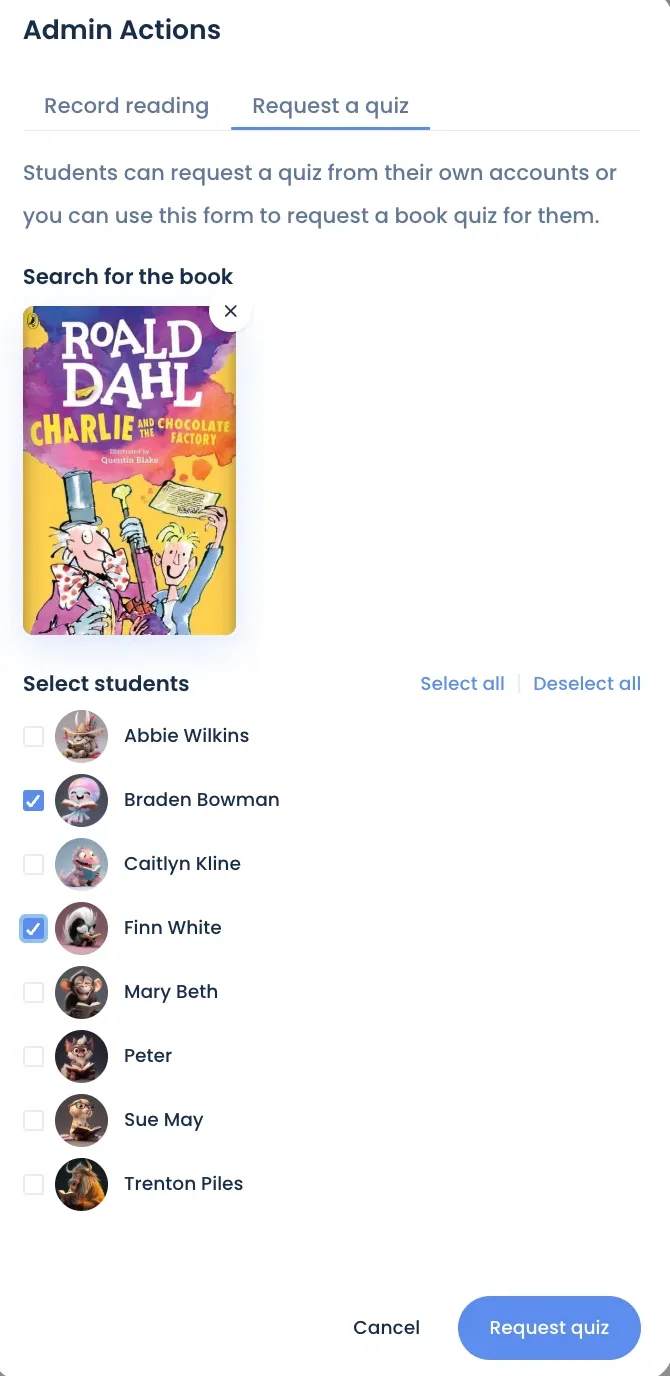
To assign a book quiz, use Request quiz on your class's Quizzes tab: pick the book, tick the students who should take it, and click Request quiz. If the book already has a quiz, it goes straight onto those students' dashboards.
Assign it
- Open your class and click Quizzes.
- Under Book Quiz Requests, click Request quiz.
- Under Search for the book, find the book and click it.
- Under Select students, tick each student who should take the quiz, or click Select all for the whole class.
- Click Request quiz.
What happens next
- The book has a quiz: each student's request shows Available under Book Quiz Requests. On their dashboard, the quiz appears under Quizzes You Requested; tapping it opens the book, where they click Take quiz. See How does a student take a book quiz?
- The book has no quiz yet: the request goes to our quiz team and shows Pending. The quiz reaches the students' dashboards when it's ready. See Where do I find a quiz I requested?
- A student already passed this quiz: they're skipped, since a passed quiz can't be retaken.
The request leaves your Book Quiz Requests list once the student starts the quiz. To see how they did, find the student in the Students table on the same tab and click the magnifying glass in View Log (see How do I see which questions a student missed?).
Students set to Admin controlled
These students can take a quiz only after you record the book as read for them. Do both at once: on the Record reading tab of the same form, choose the book and students, tick Add the book quiz to students' dashboards, and click Submit.
Your own questions instead
To quiz students on something without a Bookroo quiz, such as one chapter of a read-aloud, write a custom assessment and assign it to the students you pick.
Still stuck?
Email us or book a call. A person on the Bookroo team will help.