How do I create, assign and grade a custom assessment?
Step by step · Updated
Custom assessments are your own quizzes, such as one for each chapter of a class read-aloud. You find them on the Quizzes tab under Custom Assessments. Students see an assessment only after you assign it to them and turn it on.
To give students the Bookroo quiz for a book instead, see How do I assign a book quiz to a student?
1. Create it
- Open your class, then Quizzes.
- Under Custom Assessments, click Create assessment, name it (for example "Charlotte's Web - Chp. 3"), and click Create.
- On the Edit tab, fill in the Details: Instructions, an optional Passcode students must enter to start, and an Anticipated date.
- Under Questions, click Add new question. Choose a Format: multiple choice (single answer, select all, or true/false), Open Ended, or Puzzle (Order). Then set its Points.
- Check it on the Preview tab.
Reuse questions (school classes): Browse library lists your assessments from other classes and any that teachers at your school have shared. Pick one, tick the questions you want, choose which assessment to add them to (or create a new one), and click Add … questions. To share one of yours, turn on Make this assessment available to other teachers in my school under Permissions.
2. Assign it
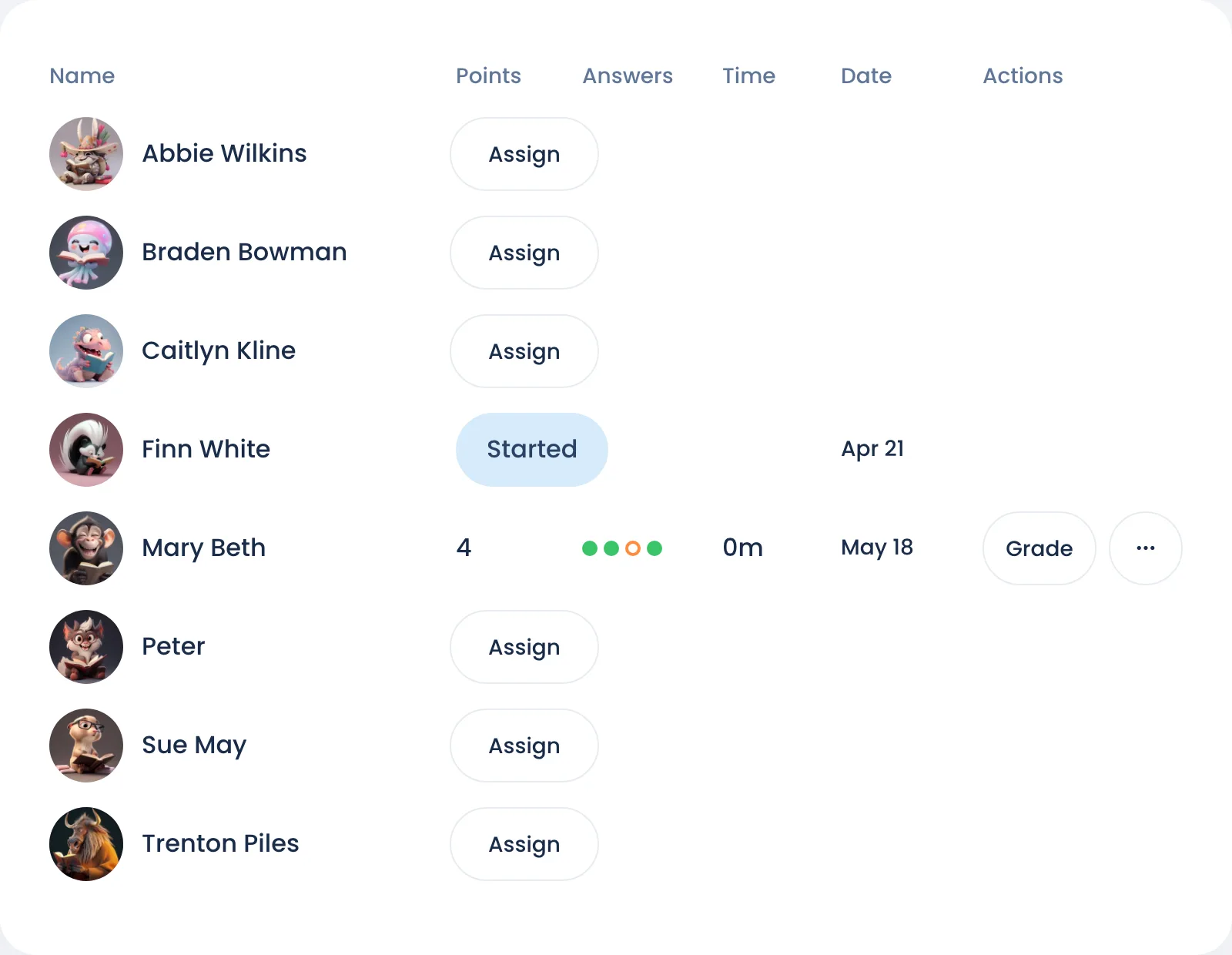
- Open the Evaluate tab and click Assign next to each student who should take it.
- Back on Edit, turn on Allow assigned students to take this assessment?
Assigned students see a Take assessment button on their Bookroo dashboard. You can also share the link from Copy assessment link, which works only for assigned students.
3. Grade it
Multiple-choice and puzzle questions are marked automatically. Open-ended answers need you:
- On Evaluate, click Grade on a submitted row.
- For each answer, choose the points and, if you like, Add feedback.
Two switches on Evaluate decide what students see afterwards: Allow students to see their point total? and Allow students to see correct answers and any feedback they were given? Students find past assessments in their Assessment Log.
Retake: in the … menu next to Grade, Void & assign retake keeps the old attempt, marked Voided, and assigns a fresh one. Delete student exam removes the attempt.
Delete assessment (under Admin Actions on Edit) permanently removes it and all student submissions.
Still stuck?
Email us or book a call. A person on the Bookroo team will help.