How do students sign in?
Reference · Updated
Students sign in at bookroo.com/student-login in one of four ways: a QR card, the class code and a passcode, Clever, or Google.
| Way in | Best for | What the student does |
|---|---|---|
| Scan QR code | K–3, shared devices | Holds their printed QR card up to the camera |
| Enter class code | Any grade | Types the class code, taps their name, enters their passcode |
| Clever | Clever districts | Signs in with Clever. Needs a class imported from Clever. |
| Google schools | Signs in with their school Google account. Needs a class imported from Google Classroom. |
Where to find the codes
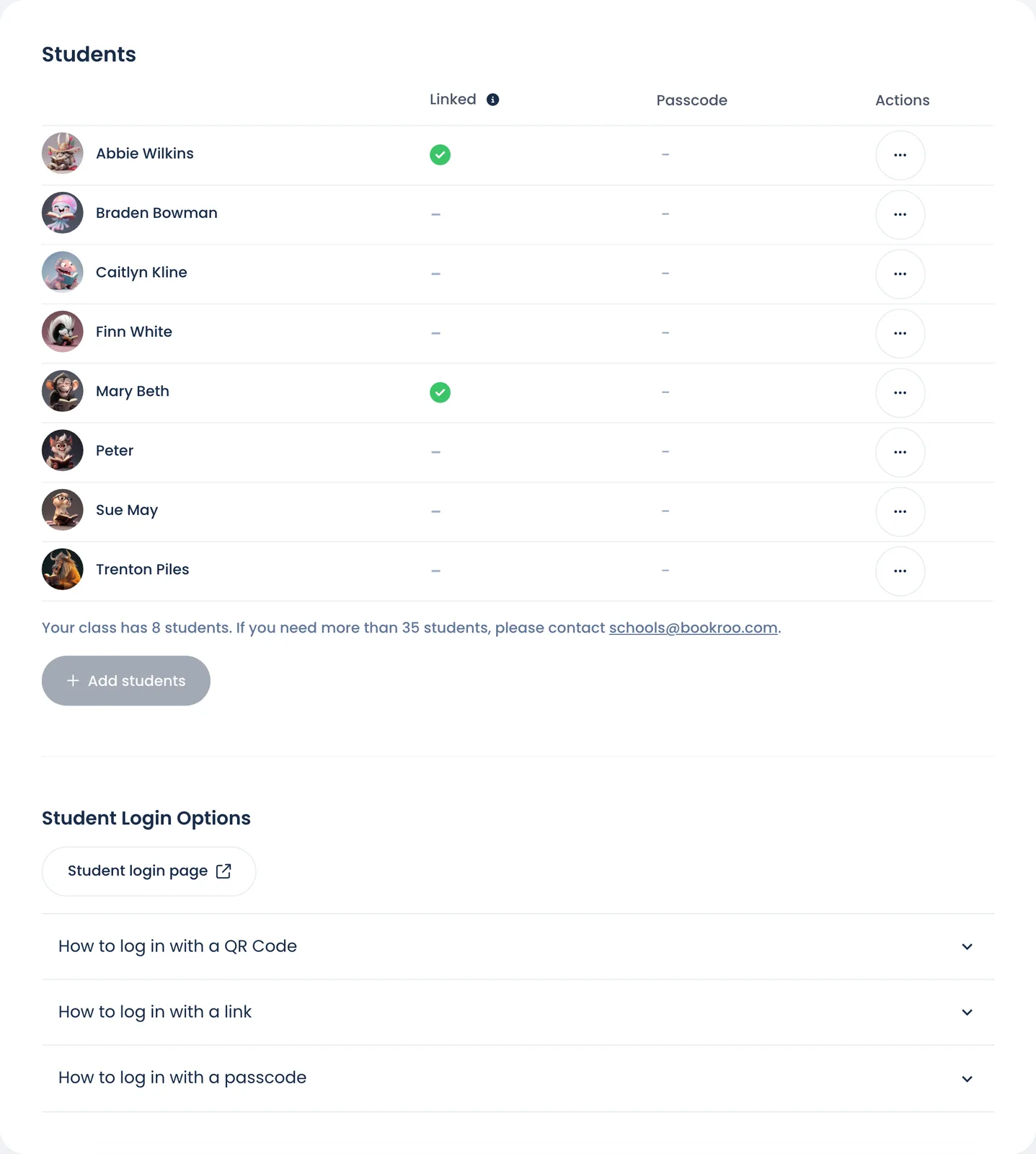
On Roster → Student Login Options:
- Print QR Codes: one card per student.
- Print passcodes: each student's passcode, with your class's sign-in page (
bookroo.com/p/…). - Download spreadsheet: a personal sign-in link for each student, handy for posting in an LMS.
- Student login page: opens the page your students will see.
Your class code is shown on the class Overview (it looks like ABC-DEFG).
Ask Marian: "Print sign-in cards" (or "print cards for students who haven't signed in") makes the cards for you.
Still stuck?
Email us or book a call. A person on the Bookroo team will help.