How do I add students to my class?
Step by step · Updated
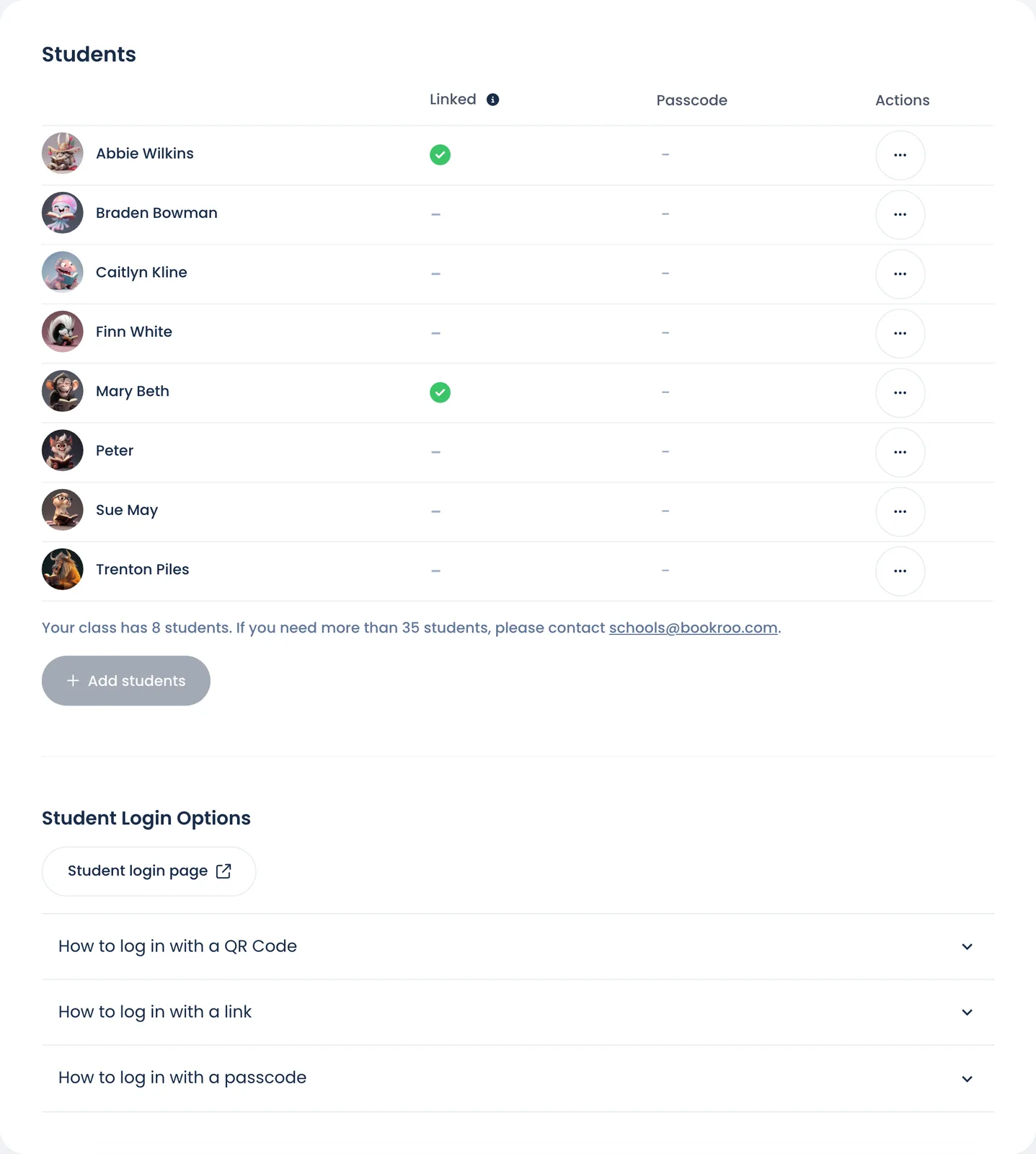
Add students on the Roster page. You can type their names, import them from Google Classroom, or pull them from a Clever section.
Type names
- Open your class and click Roster.
- Click Add students and enter each student's name.
- Save. Each student gets a sign-in passcode and a QR code right away (see How students sign in).
Import from Google Classroom or Clever
- Google Classroom: when you create a class, choose to import a Google Classroom course. From then on, Add students offers to import new students from that course.
- Clever: create the class by importing a Clever section. After that, click Sync from Clever on the Roster whenever the section changes. Syncing adds new students and updates existing ones. It doesn't remove anyone, so remove students who left yourself.
Neither import runs automatically in the background. See Rostering with Clever and Google.
Limits
- A class holds up to 30 students, or 100 in a class created under a school.
- When you hit the limit, Add students is disabled. Email schools@bookroo.com to raise it.
Ask Marian: "Show me my class" lists your roster.
Still stuck?
Email us or book a call. A person on the Bookroo team will help.