How do I download a reading report for my whole school?
Step by step · Updated
School admins download a spreadsheet (CSV) of reading and quiz results from the school dashboard, for any dates and classes.
Steps
- Go to your Dashboard and, under Your places, open your school's card.
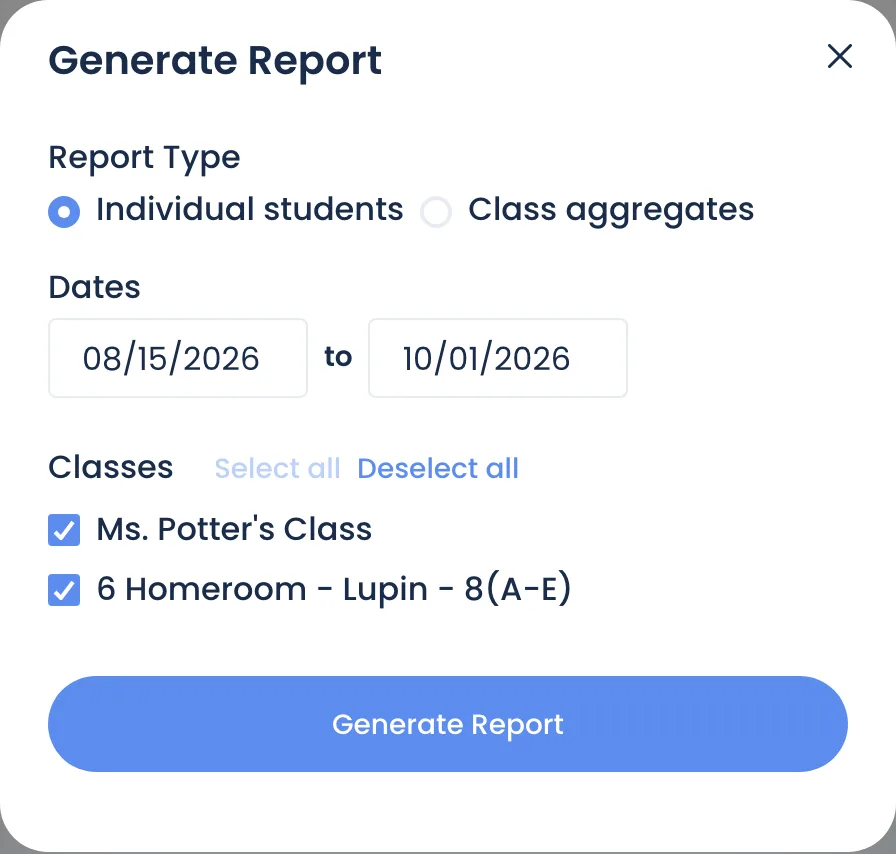
- Next to Classes, click Generate Report.
- Choose a Report Type:
- Individual students: one row per student.
- Class aggregates: one row per class, with its # of Students.
- Set the Dates. They start at your earliest class start date and end today.
- Under Classes, tick the classes to include (Select all / Deselect all).
- Click Generate Report. The file downloads straight away.
What's in it
| Column | Counts, within your dates |
|---|---|
| Name (individual), Class, Grade | Who, and which class |
| Pages Read, Minutes Read, Books Finished | Reading recorded on those days |
| Books Abandoned | Books the student stopped reading |
| Quizzes Taken, Passed, Failed, Abandoned | Quiz attempts |
| Quizzes Average Score | Average of passed and failed quizzes |
| Words Added to Vault | Words from books whose quiz was passed |
Good to know
- Only school admins see Generate Report. You need Owner or Admin permission on the school (Add teachers to your school).
- Ended classes aren't listed. A class whose End Date has passed drops off the school dashboard. To report on it, extend its End Date first (My class disappeared).
- Students are listed by their current class. A student moved mid-year appears under their new class, with all their reading for the dates you chose.
- A student in two classes appears under each. Their reading shows in full on both rows, so a school-wide total counts them twice.
- Minutes Read appears when at least one student logged minutes in your dates.
- Unassigned students aren't in the report. See Who are the Unassigned students? to get them placed.
Still stuck?
Email us or book a call. A person on the Bookroo team will help.