How do I view, filter and print my class's reading log?
Step by step · Updated
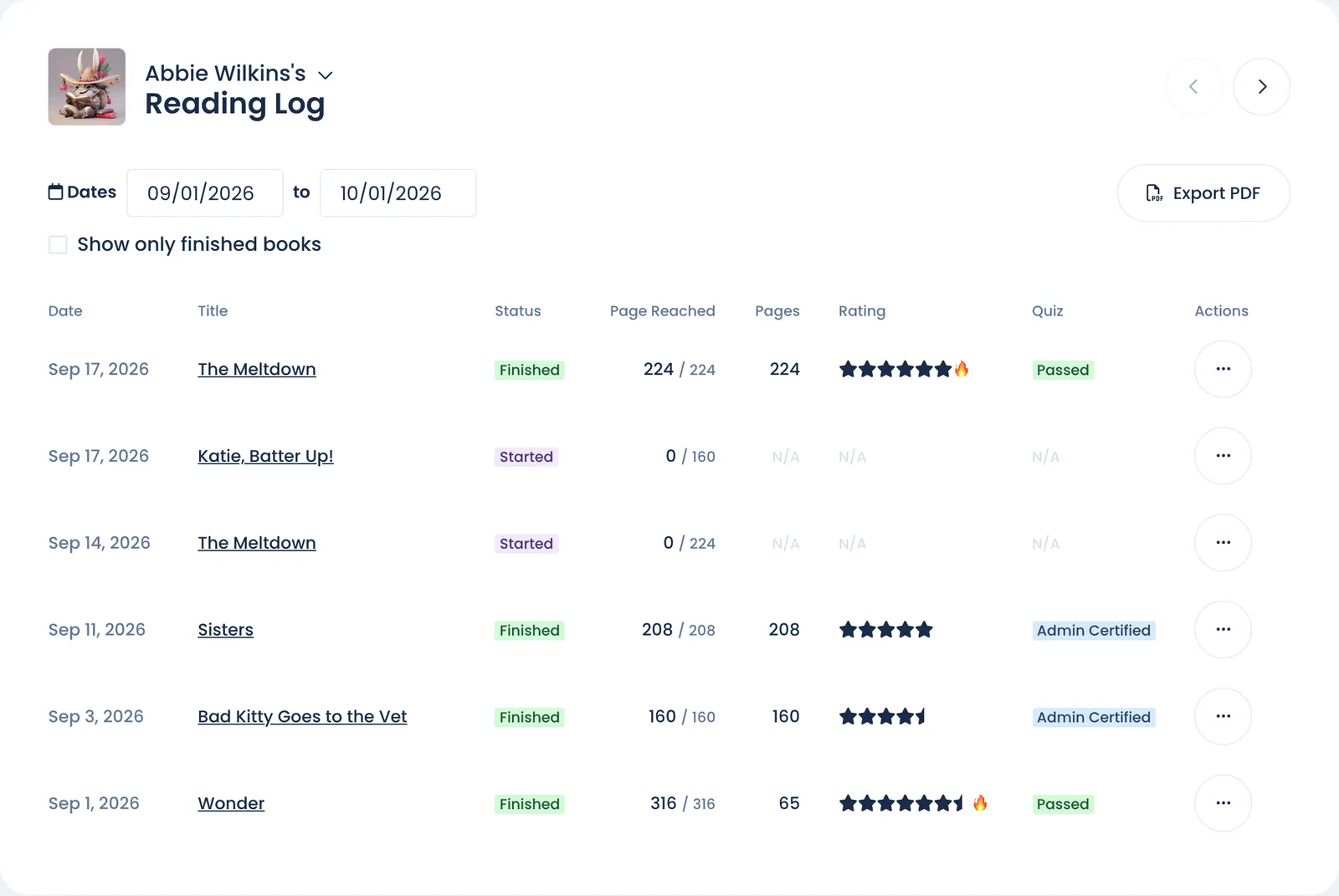
Each student has a reading log: every book started, page reached and book finished, by date. Open it from Overview and move through the class one student at a time.
View a student's log
- On your class Overview, find the Reading Log for… card and click View all students.
- Pick a student with the arrow next to their name, or step through the class with the Previous and Next arrows on the right.
The log opens on the last 30 days.
Filter it
- Dates: change the two date pickers to cover any range.
- Show only finished books: hides everything but completed books.
Print it
Click Export PDF. You get that student's log for the dates and filter you've chosen, ready to print or send home. Do this once per student.
What the columns mean
| Column | What it shows |
|---|---|
| Status | finished, DNF (stopped without finishing), progress (pages read that day), started, or numeric (a reading session logged without a book) |
| Page Reached / Pages | Where they got to, and how many pages that entry covered |
| Minutes | Only appears when some entry has minutes |
| Rating | The student's star rating for a finished book |
| Quiz | Passed, Admin Certified or the quiz status. It's called Certified if students need a quiz before points (Require a quiz before points). |
| Range | Where the book sat against the student's ZPD. It only appears once a ZPD is set (Reading levels and ZPD). |
Fix an entry
Click … in the Actions column, then Edit reading. The same menu lets you certify a finished book. See Record or fix reading.
To see the whole class at once, use the Activity Feed.
Still stuck?
Email us or book a call. A person on the Bookroo team will help.