How do students write notes while they read?
Step by step · Updated
With Reading Notes on, students can write a short note each time they update their progress on a book, not only when they finish it. You read the notes on your class's Reflections page. It's off until you turn it on, class by class.
Turn it on
- Open your class and click Settings.
- Under Reading Notes, tick Let students write notes while they read.
- Optional: set a Question to Ask. Students see it above the notes box. Leave it blank and they see "What stood out to you in what you just read?", which fits any book. For a question that fits your unit, click Use this question to ask "What do you predict will happen next, and why?", or type your own (up to 200 characters).
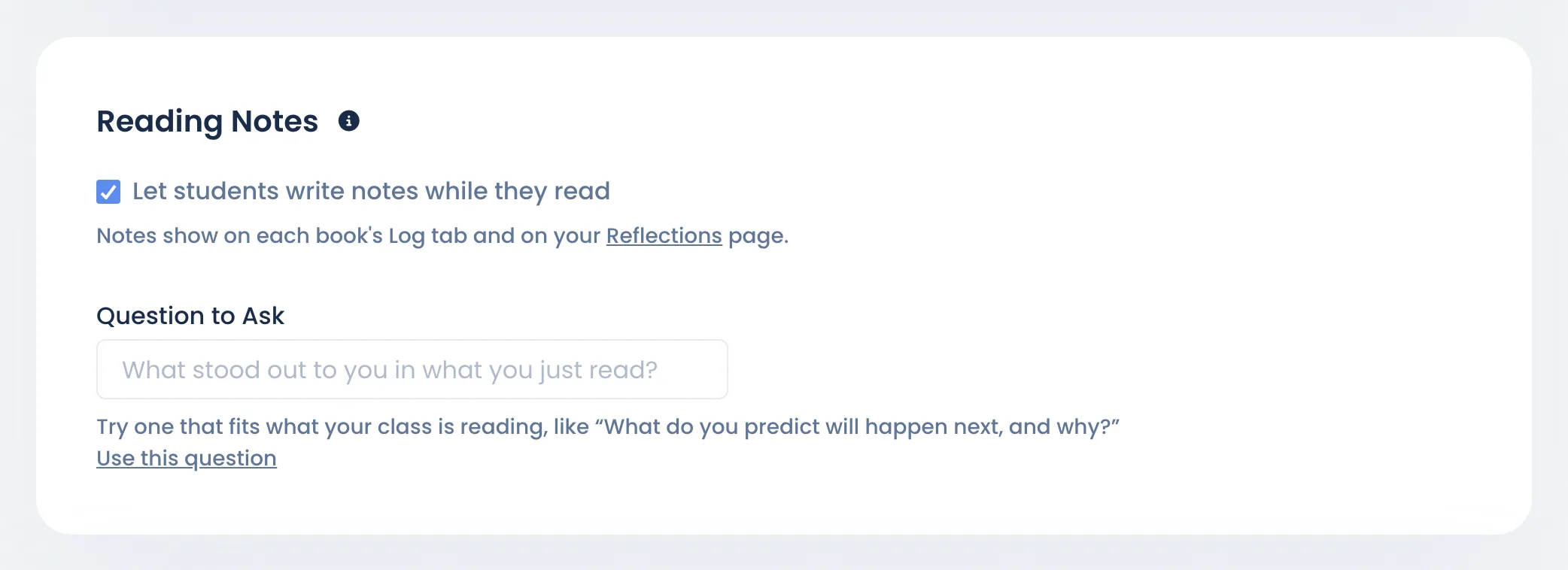
Change the question whenever your unit changes. Each note keeps the question it answered, so earlier notes don't change.
What students do
- On a book they're reading, students click Update progress and enter the page they reached, as usual.
- Under it, a Reading note · optional box shows your question. They write a few sentences and click Save.
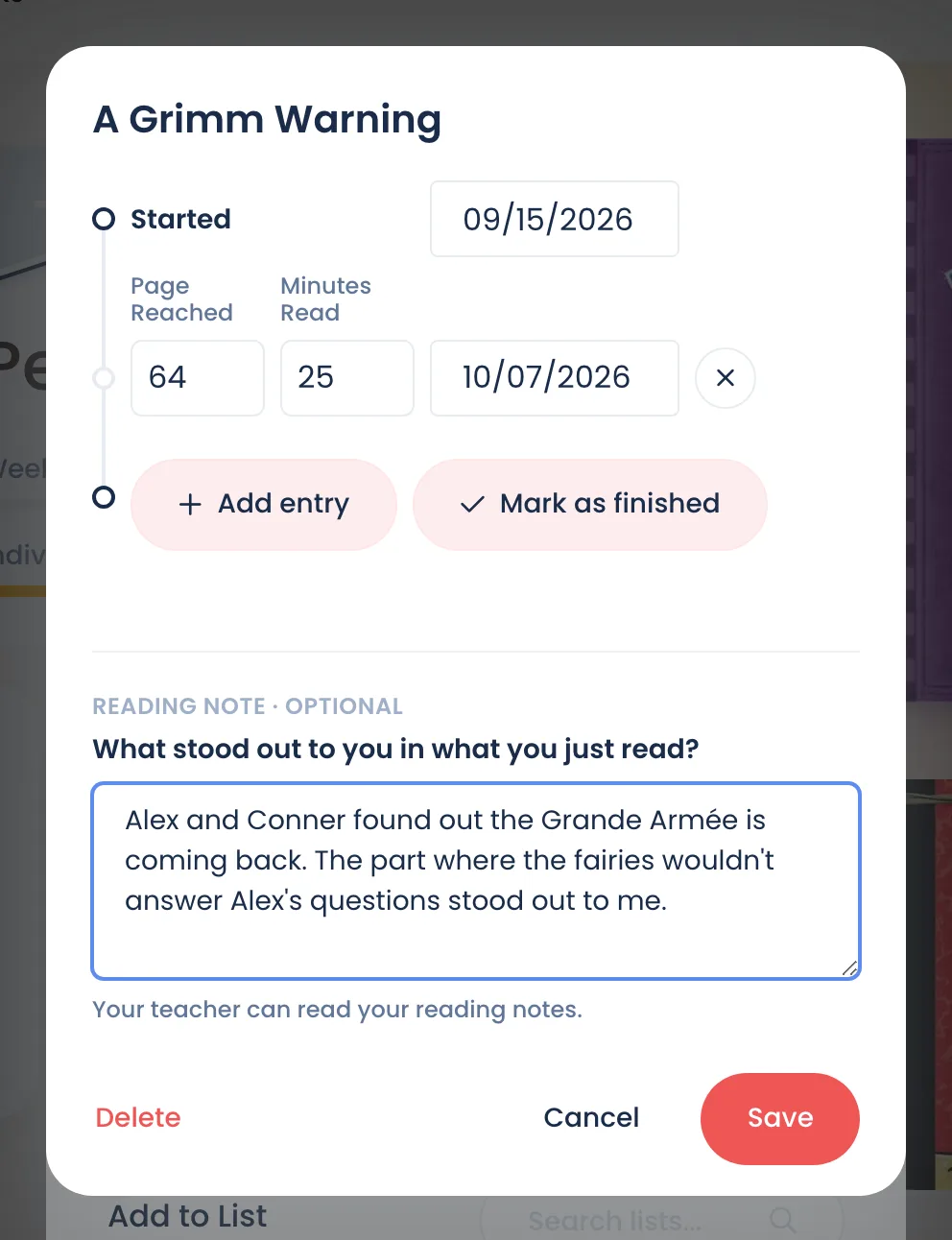
The note saves with the page they just reached. Their notes on a book show in order on its Log tab, each with the page, the date and the question. Students can edit or delete their own notes there.
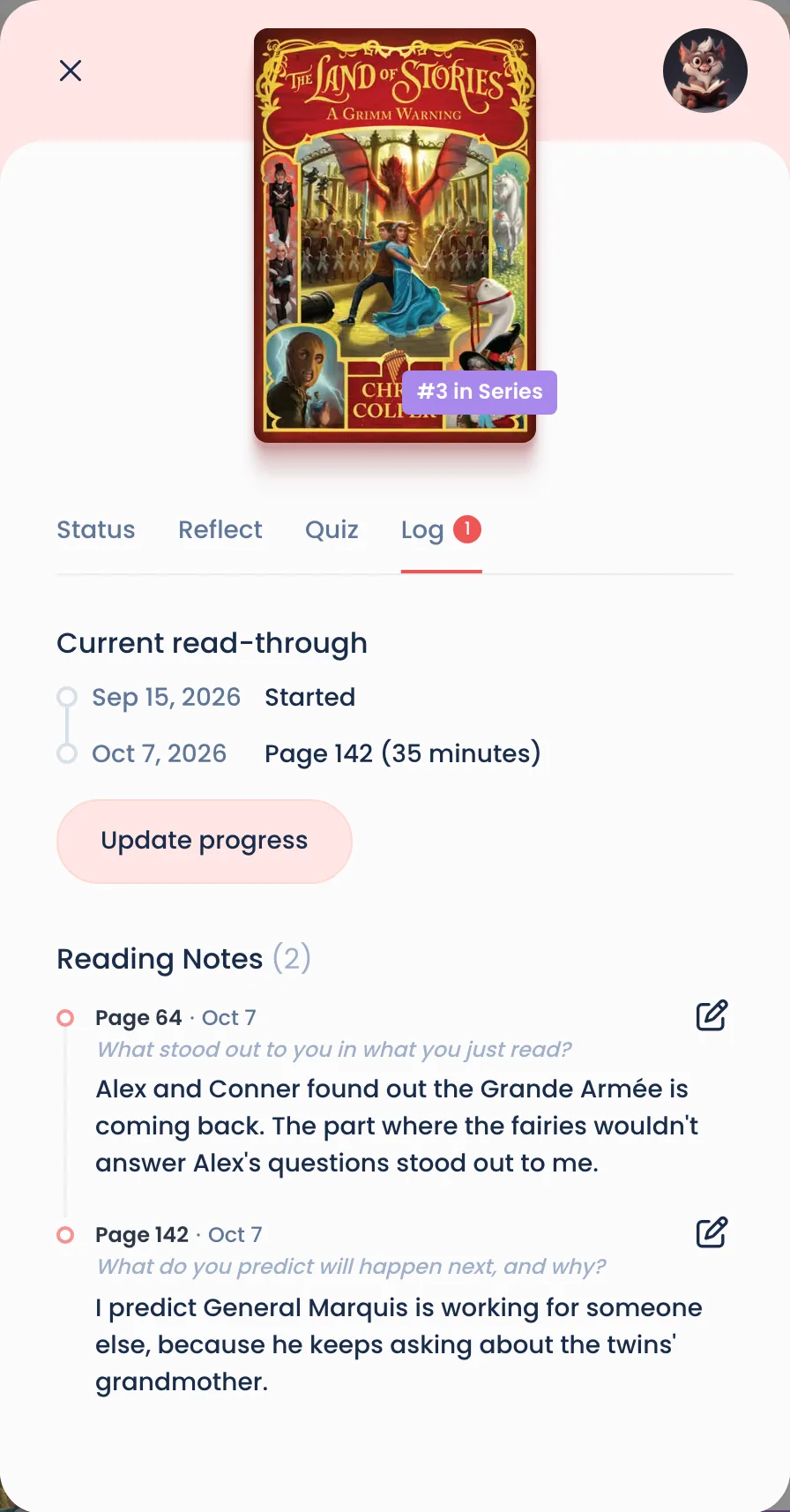
- Notes are optional. Students can save their progress without one.
- A note can be up to 1,000 characters.
- Notes earn no points or stones.
- When students finish the book, they still write their reflection on the Reflect tab. See Student reflections.
Read your class's notes
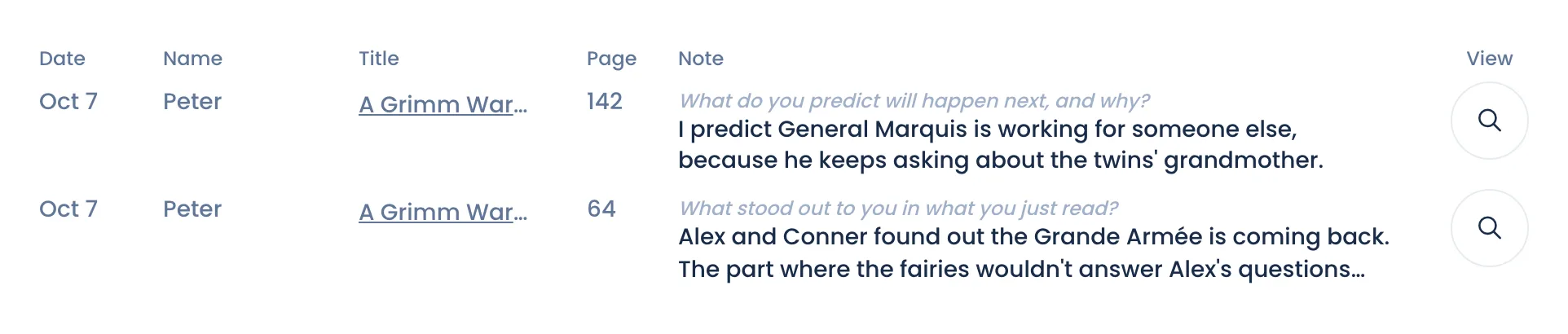
- On your class Overview, click View more reflections.
- Click While reading.
Each row shows the Date, Name, Title, Page, the question and the start of the note, newest first. Click the magnifying glass to open that book's Log tab as the student: all their notes on it, in order, under their progress.
Good to know
- Turning it off hides the notes box. Notes already written stay, for you and the student.
- Marking a book unread or rereading it keeps the notes on it.
- A student in two classes can write notes if either class turns them on. If both set a question, the newer class's applies. See Students in more than one class.
- Who can read them: the student, the teachers of their classes and a family account linked to them. Students see "Your teacher can read your reading notes." as they write.
- You can't edit, delete or reply to a student's note.
- Notes only work on books from the Bookroo catalog, not on a book a student added by hand.
Still stuck?
Email us or book a call. A person on the Bookroo team will help.