How do I see one student's reading report, or print conference reports?
Step by step · Updated
Click any student's name in your class to open their page. Their Reading Report is near the bottom. For conferences, go to For Parents → Generate reports to get a printable page for every student.
See one student's reading report
- Click the student's name anywhere in your class (for example in Reading Stats, where Full Report jumps straight to the report).
- Scroll to Reading Report. It covers your class's start date to today.
- Change the Dates, or pick a year under View Year.
- Optional filters: Show only certified reading, and Show only reading in the ZPD if the student has a ZPD.
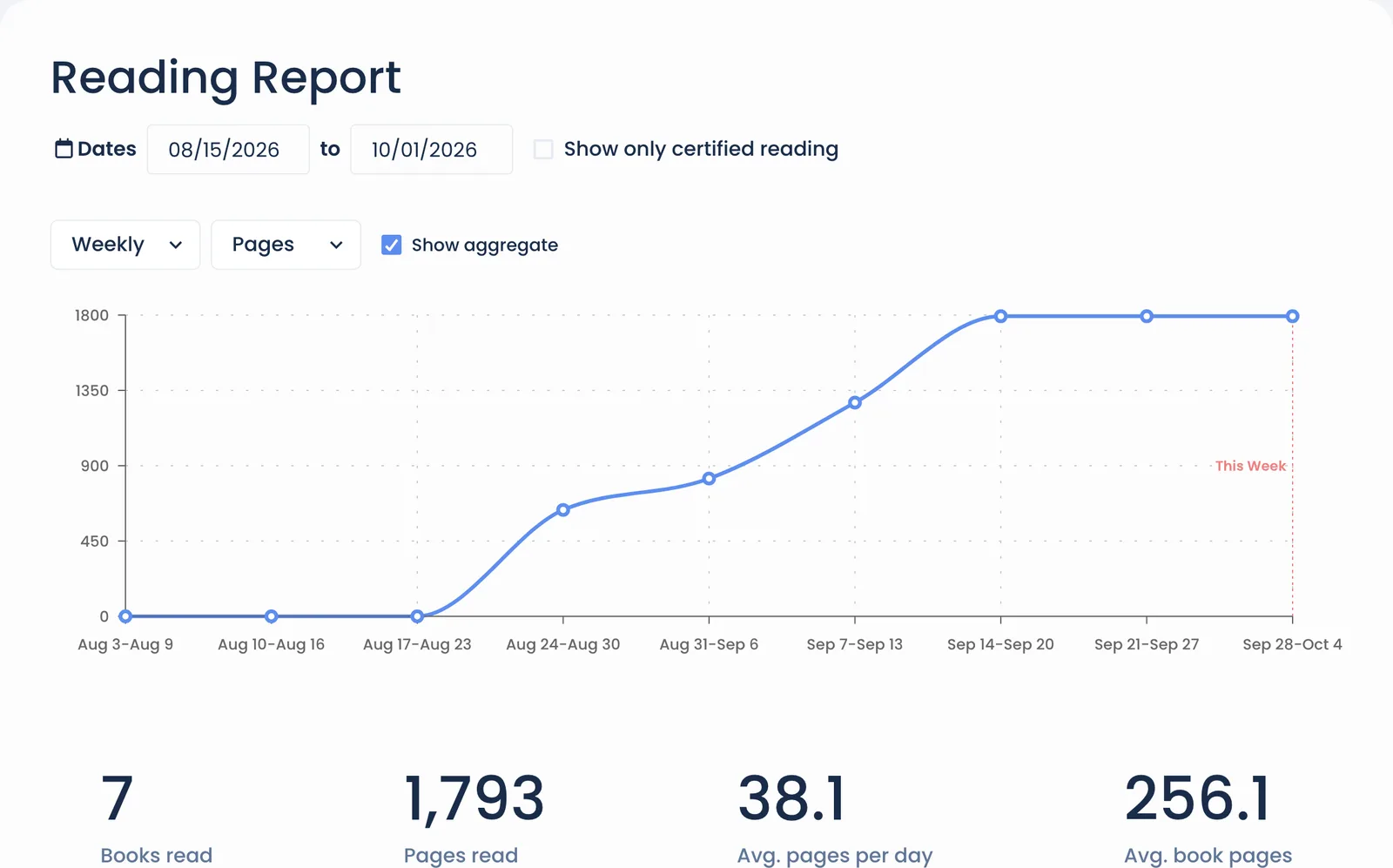
The report shows a pages-read chart and totals: Books read, Pages read, Avg. pages per day and the most read in a day. Below those come charts for Avg. pages by day of week, Book audiences, Graphic novels, Book ratings and Book difficulty. Then its Reading Log and Book Quizzes, Book Highlights and Books Recently Read.
Use Export PDF on the Reading Log or Book Quizzes section to print that part.
Print parent-teacher conference reports
- In your class sidebar, open For Parents.
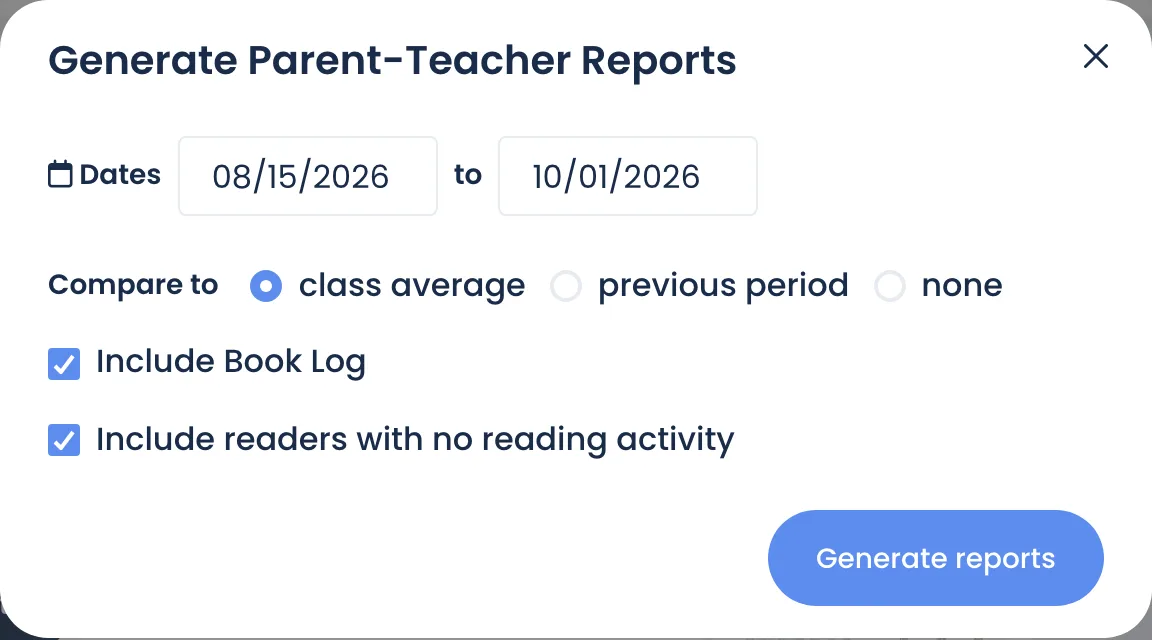
- Under Parent-Teacher Reports, click Generate reports.
- Set the Dates. They start on your class's start date, or 90 days ago if the class started earlier.
- Under Compare to, choose class average, previous period or none.
- Keep Include Book Log ticked to add a list of the books each student read. Untick Include readers with no reading activity to skip students with no finished books.
- Click Generate reports.
You get one PDF with a page for each student. It shows books read, pages read and quizzes passed, pages by day of week, book difficulty against their ZPD (or a recommended range if they have none), and recently finished books. Each page has a QR code families can scan to follow their child's reading at home. Only finished books count.
Still stuck?
Email us or book a call. A person on the Bookroo team will help.