How do I set up Bookroo for a new school year?
Step by step · Updated
Start each year with a new class, move your returning students into it, and let last year's class end. Last year's reading stays where it was.
Steps
- Create this year's class. Use Create class in the class switcher at the top of the sidebar (Start a free class). Using Clever or Google Classroom? Import this year's section or course.
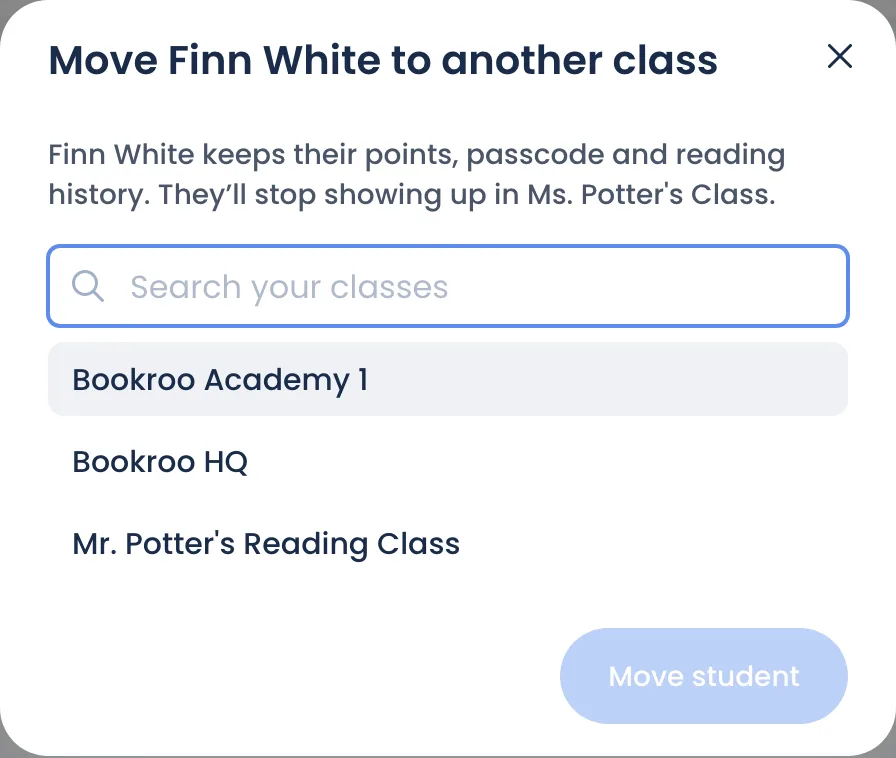
- Move returning students. In last year's class, go to Roster → … next to the student → Move to another class, and pick the new class. You can also move a student to a colleague's class at your school.
- Add new students on the new class's Roster (Add students).
- Set the class up again. Settings, custom rewards and challenges belong to a class, so set them in the new one (Class settings, explained).
- Let last year's class end. Check its End Date in Settings → Class Settings. The day after, it's archived: hidden from dashboards and students, with nothing deleted. Find it later under Show N hidden on your Dashboard.
What carries over
| In the new class | |
|---|---|
| A moved student's reading history, purple and blue points, passcode and book lists | Come with them |
| A moved student's team | Kept only within the same school |
| Settings, custom rewards, challenges, co-teachers | Start fresh |
| Subscription | The new class starts its own 30-day trial, unless your school plan covers it (Trial and subscribing) |
Keeping the same class instead?
You can. In Settings → Class Settings, set Start Date to the first day of school (class stats count from it) and End Date to the last. Tick Only count Word Vault words earned since the class start date under Book Quizzes to restart the class word count. Remove students who left with Remove reader.
Points don't reset. To clear them, email schools@bookroo.com with your class name.
Still stuck?
Email us or book a call. A person on the Bookroo team will help.